
Six templates, made with real screens
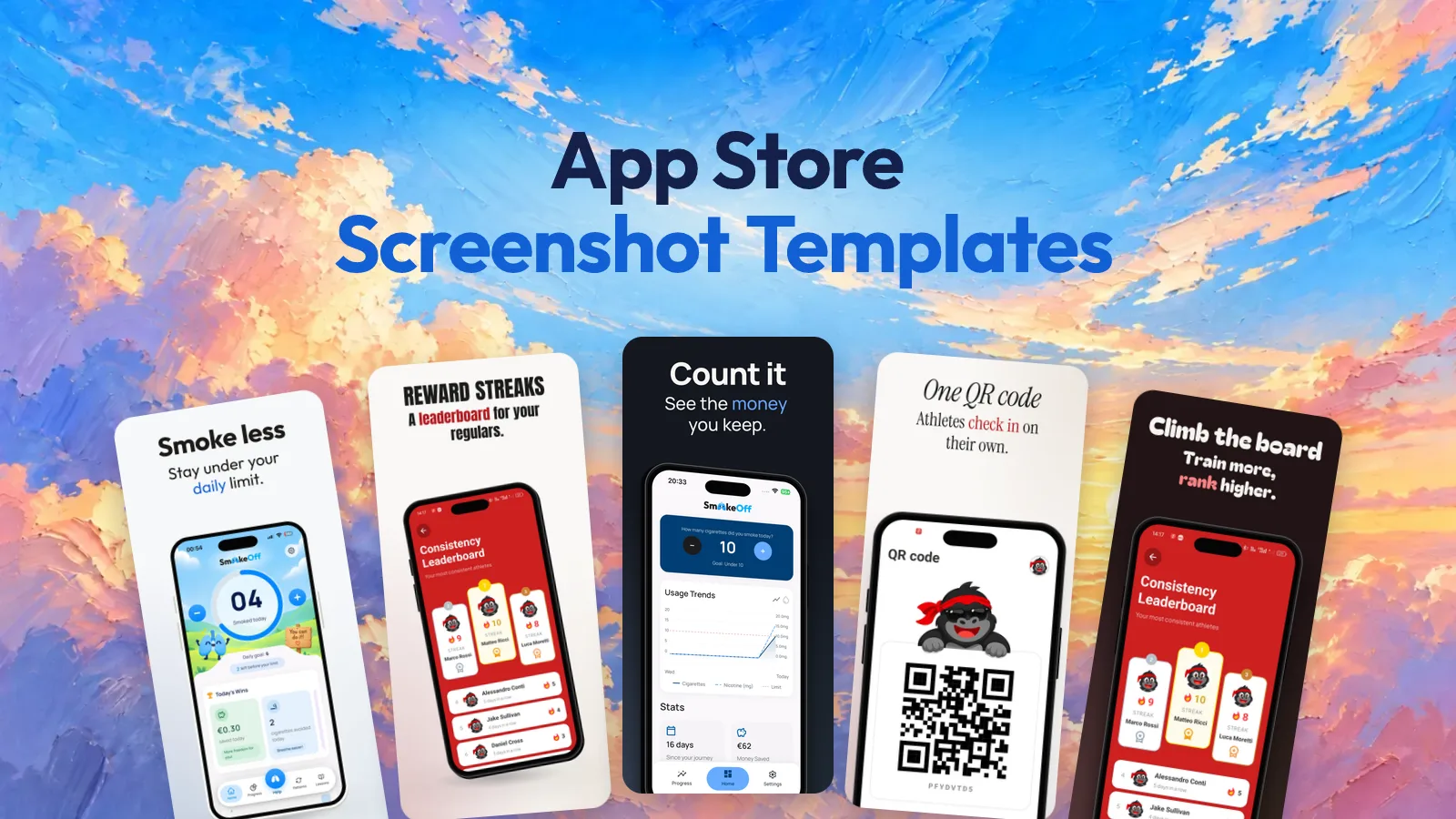
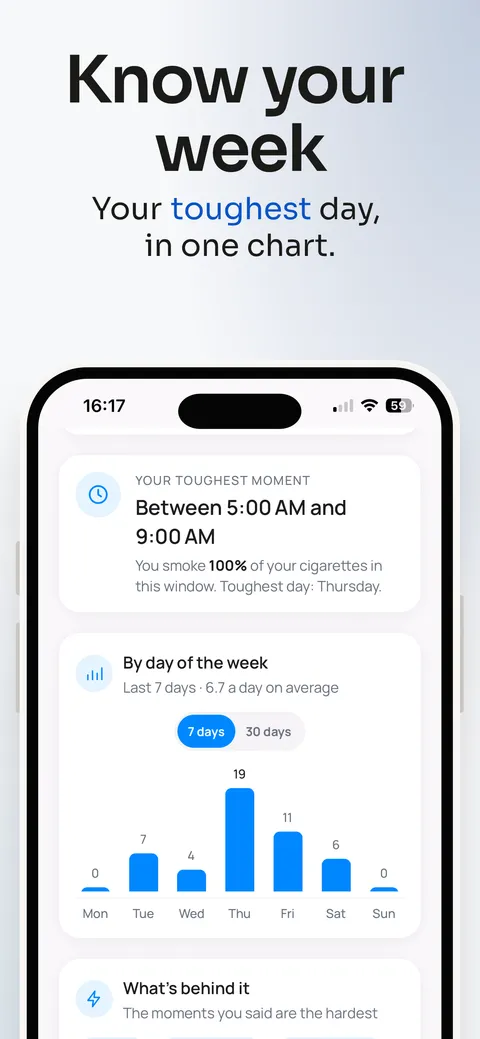
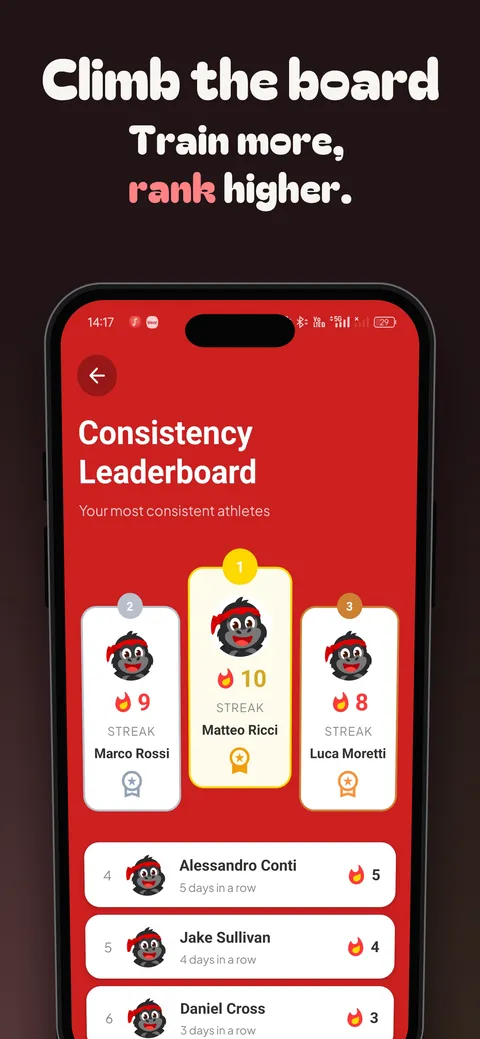
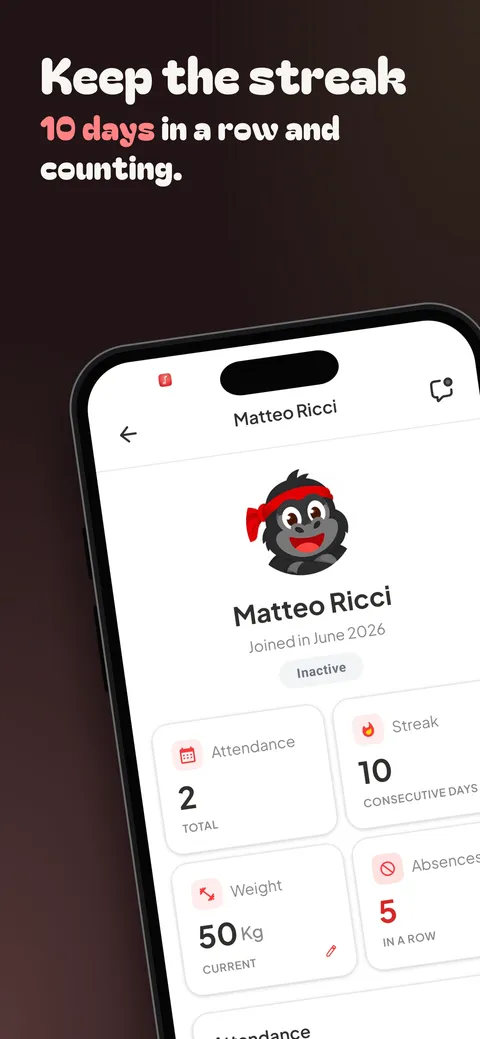
Each template is a sequence of five screens. Below you see the first three of each one.
I wrote these headlines myself. In the editor the first draft comes from AI, and you change whatever you want.
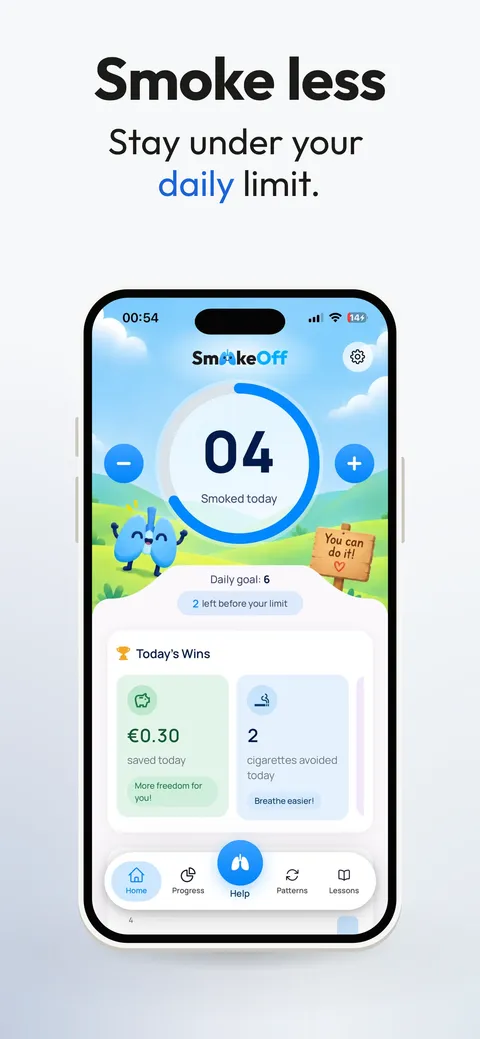
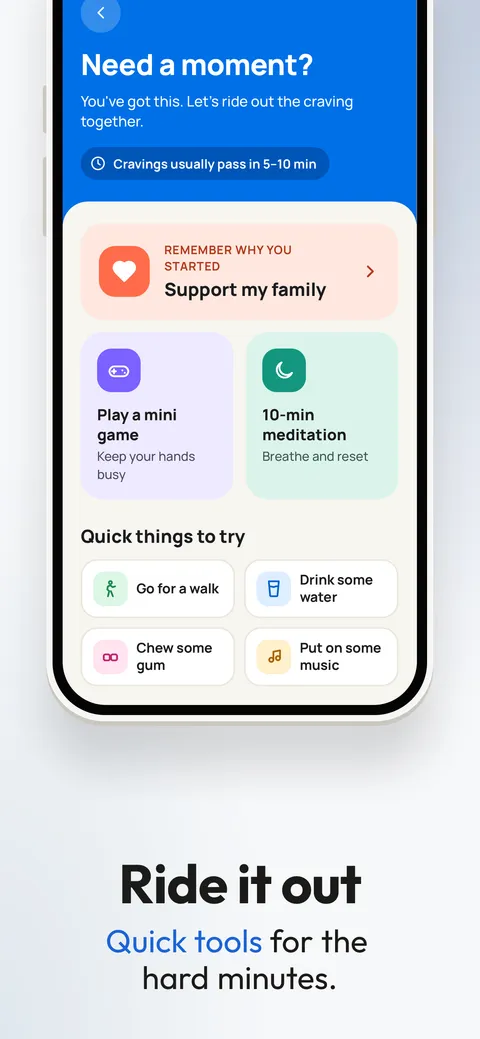
Calm
Health & FitnessLight background, white phone. The phone stays whole and easy to read. Screens from Smoke Off.
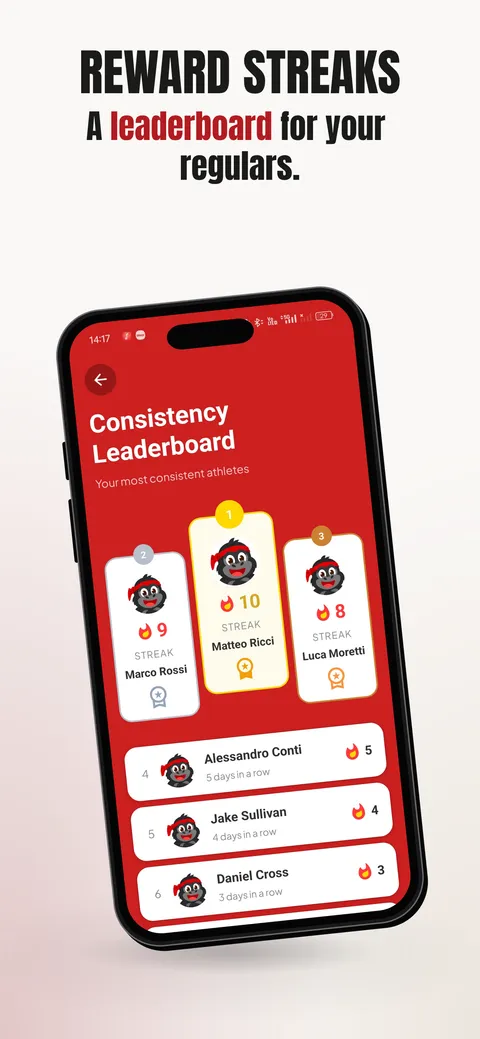
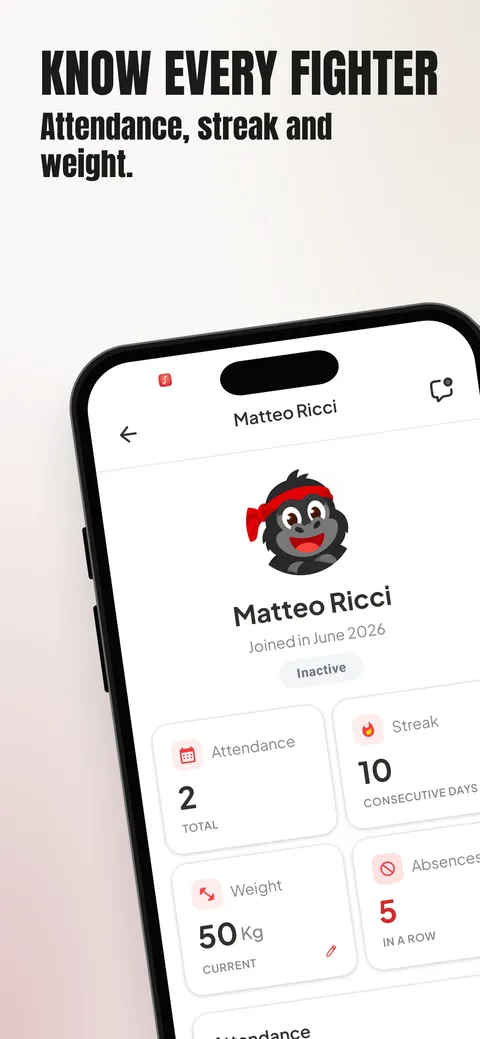
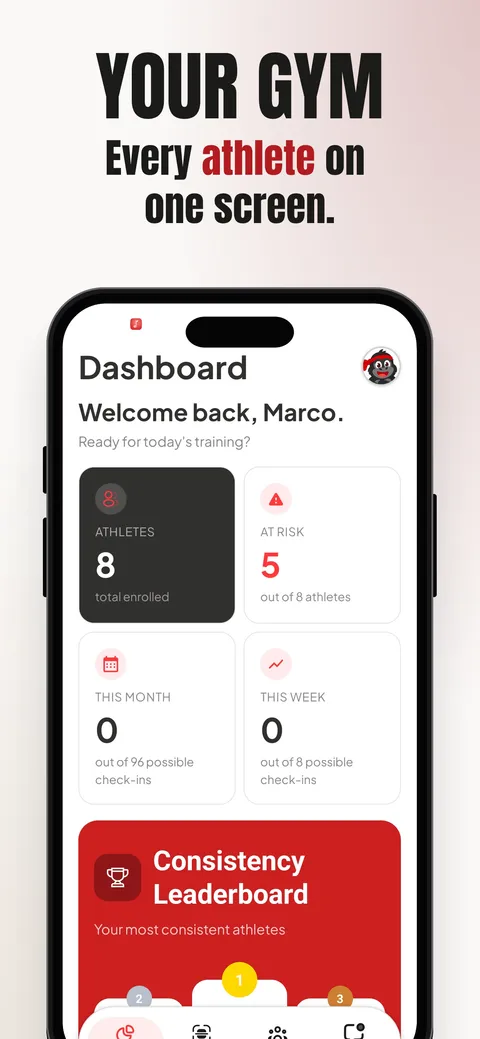
Energy
Health & FitnessLight background, black phone. It opens tilted and moves in close. Screens from Combatly.
Premium
Finance & BusinessDark background, black phone in three-quarter view. Screens from Smoke Off.
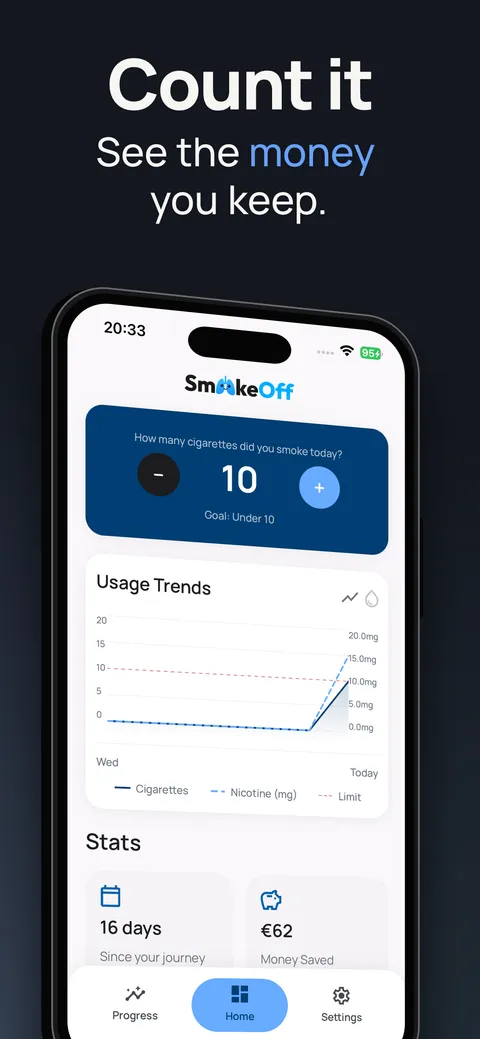
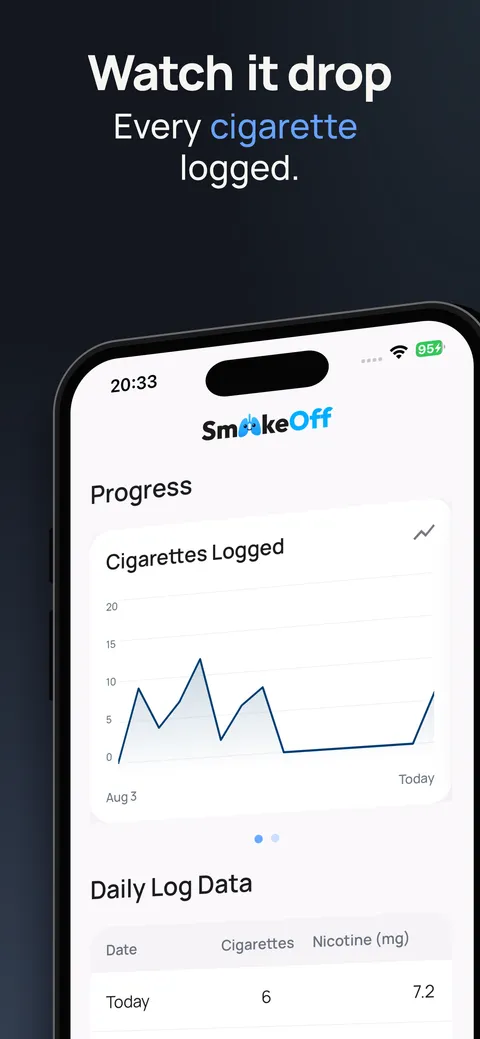
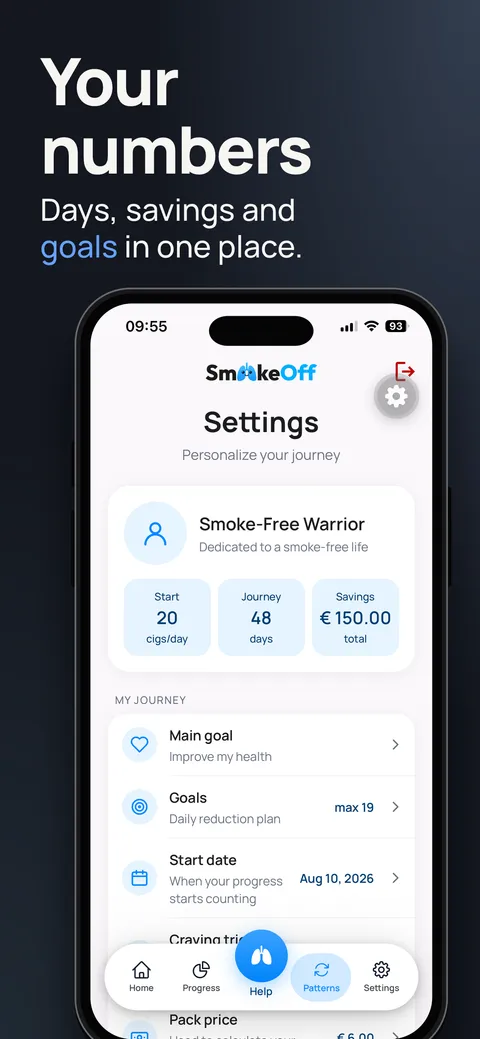
Focus
Productivity & UtilityLight background, black phone. Half phones and cuts keep the eye on one feature. Screens from Combatly.
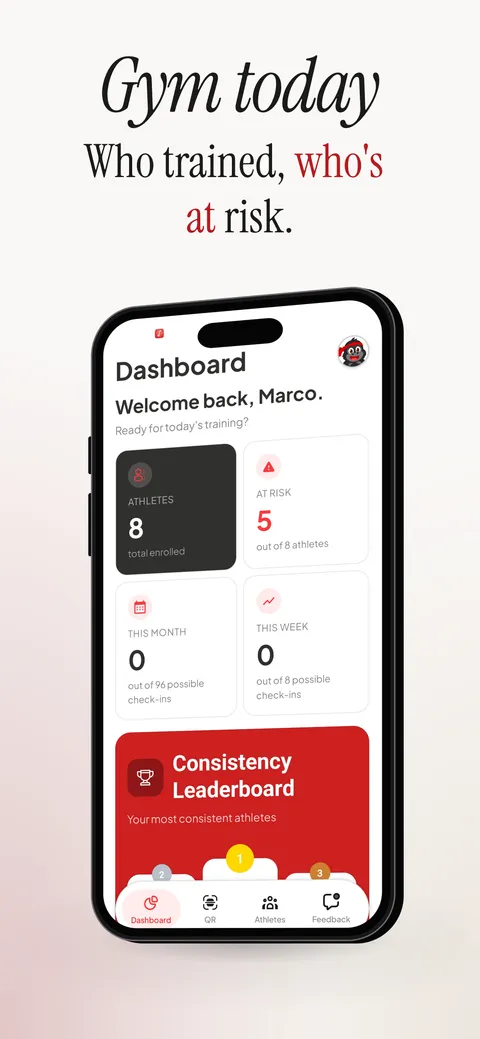
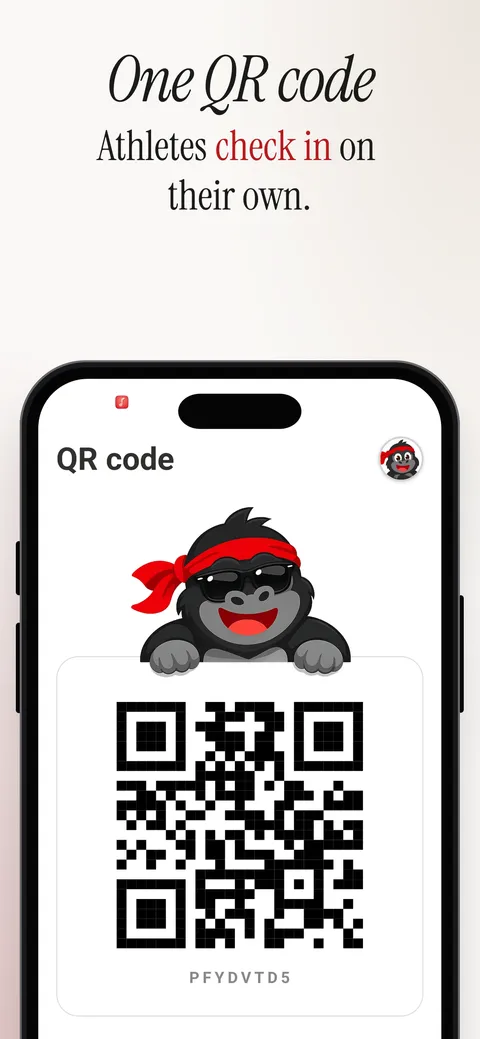
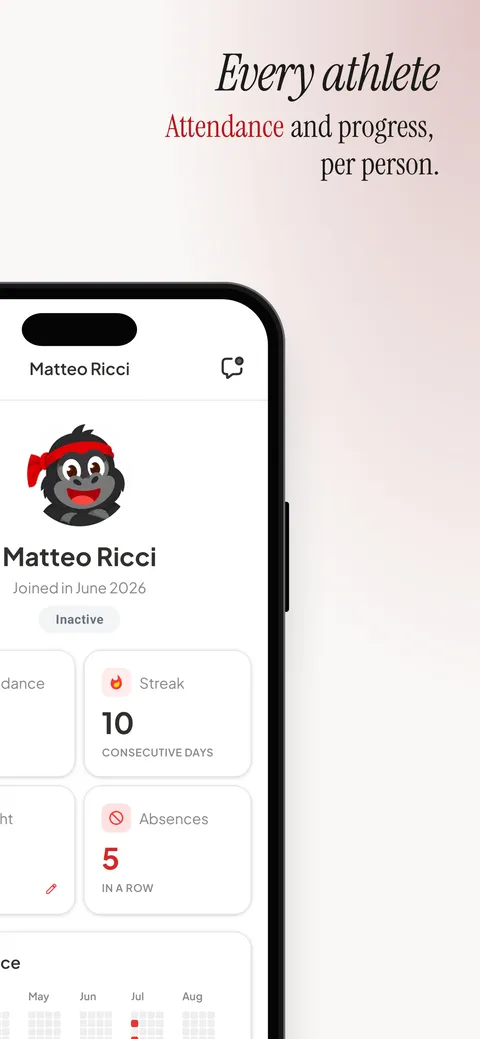
Study
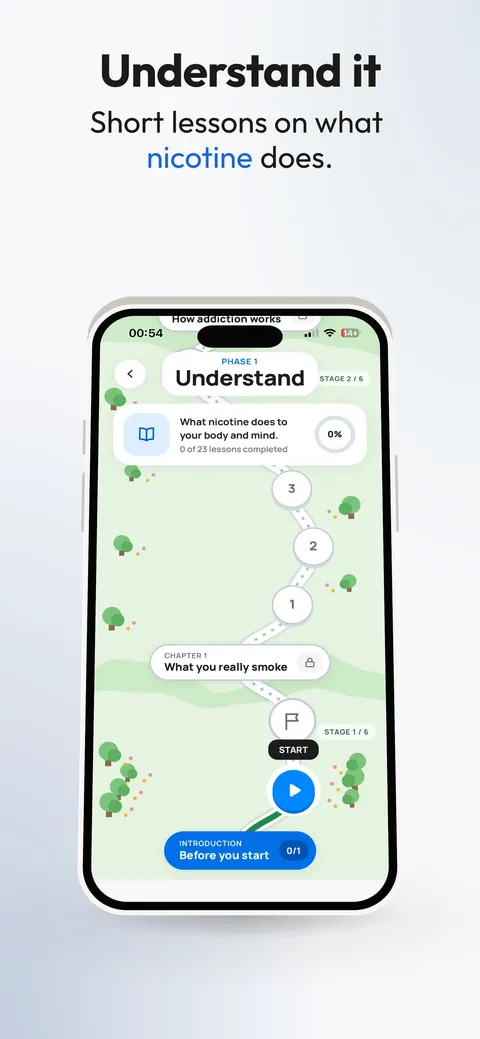
Education & GamesLight background, white phone. Calm first, then the phone gets closer. Screens from Smoke Off.
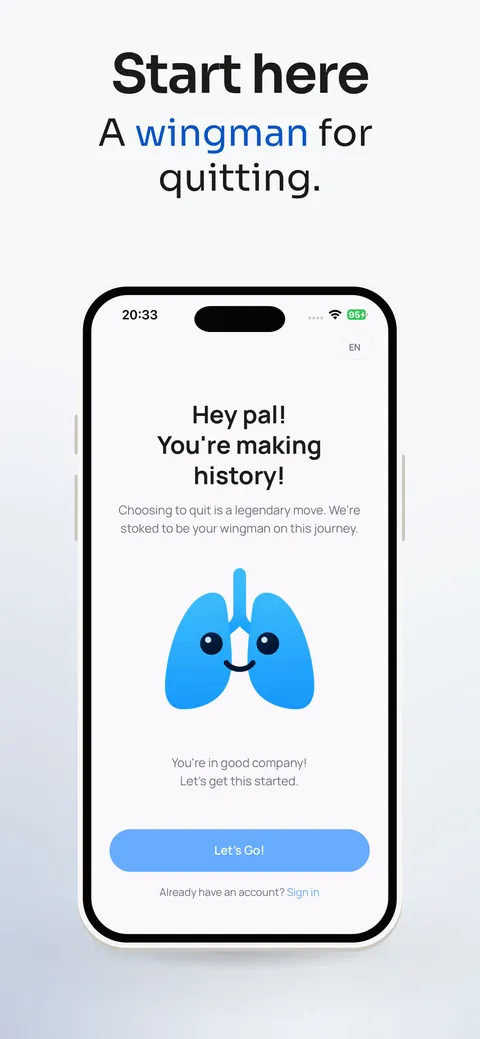
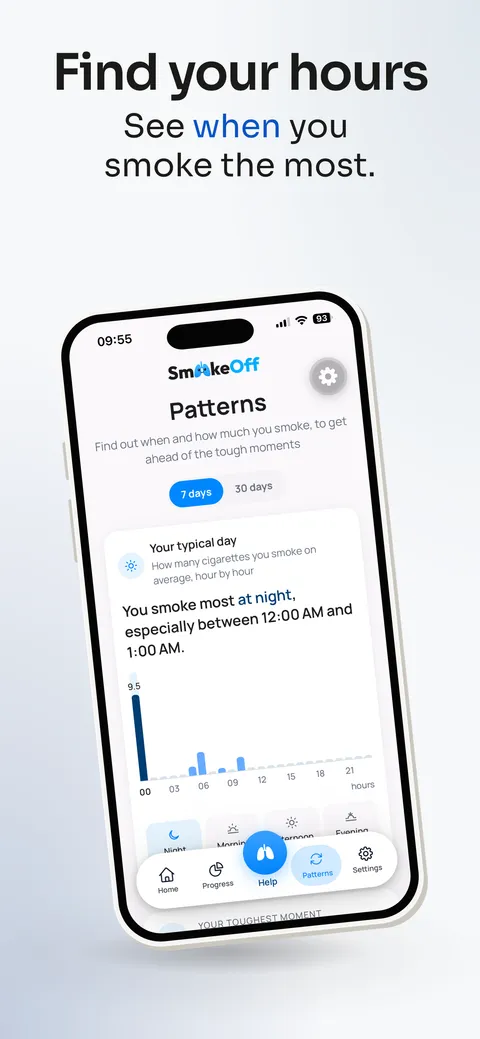
Play
Education & GamesDark background, black phone seen from below. The loudest of the six. Screens from Combatly.
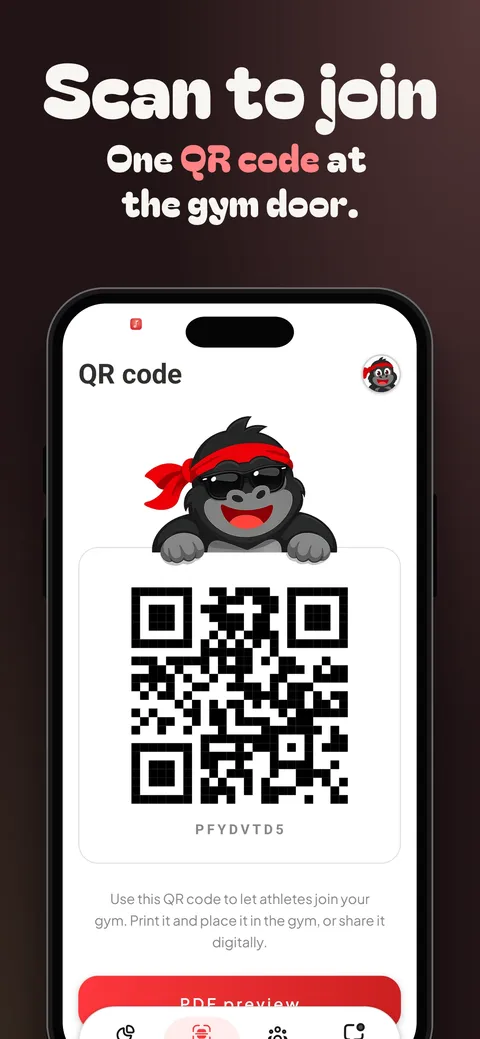
Smoke Off is my quit-smoking app and Combatly is a gym app. So a Finance template with a smoking app inside looks a bit weird, I know. It’s only there to show the layout. Your screens go in the same spots.
The colors aren’t part of the template. They come from your screenshots, so the same template looks different on every app.
Why I only show the first three
Apple lets you put up to 10 screenshots on your product page.
But in search results, people see only the first one to three, when you don’t have an app preview video. That’s from Apple’s own product page guide.
So the first three do most of the work. If someone doesn’t get the app from those, they keep scrolling.
When I make a kit, I put the clearest screen first. For Smoke Off it’s the home screen with today’s count. Then the rest of the sequence explains how it works.
All 12 templates in the editor
There are six categories, with two templates each. The table says how each one starts.
| Template | Category | Background | Phone | First screen |
|---|---|---|---|---|
| Calm | Health & Fitness | Light | White | Title on top, whole |
| Energy | Health & Fitness | Light | Black | Tilted |
| Trust | Finance & Business | Light | Black | Title on top, whole |
| Premium | Finance & Business | Dark | Black | Three-quarter, rising |
| Order | Productivity & Utility | Light | White | Title on top, whole |
| Focus | Productivity & Utility | Light | Black | Three-quarter |
| Feed | Social & Media | Dark | Black | Rising from below |
| Creator | Social & Media | Light | Black | Close three-quarter |
| Showcase | Shopping, Food & Travel | Light | Black | Rising from below |
| Journey | Shopping, Food & Travel | Light | White | Three-quarter, off axis |
| Study | Education & Games | Light | White | Title on top, whole |
| Play | Education & Games | Dark | Black | From below |
Light templates are the safe choice for most apps. The dark ones stand out more, but they need screens that look good on dark.
How you get a template in the editor
You don’t pick a template first. You start from your screens:
upload your screens → get headlines → open the editor → check the template
From your screens and headlines, the editor works out what kind of app it is. The Tips panel then shows the two templates for that category. The first one is already applied.
Don’t like it? Click the other one. Or keep it and change single screens.
One thing to know: the buttons on this page open an empty editor. They don’t load the template you were looking at.
What you can change
A template is only where you start. In the editor you can change:
- The layout of each screen, from 18. Phone whole, in three-quarter view or cut in half.
- The frame: Apple, Android or no frame, in black, white or your own color.
- All 8 colors of the kit, including light or dark background on each screen.
- The font, from 25 families.
- Headlines, their size and where they sit.
- Extra texts and shapes, up to 12 per screen.
- A zoomed detail of your screenshot, on top of the phone.
If you pick a color that’s hard to read, the editor tells you. It doesn’t change it for you though. Your call.
Looking for Figma, Canva or PSD templates?
I don’t have those. There’s no file to download here.
If you like working in Figma or Canva, a template there is fine. You just do the resizing and the exports yourself, for every screen.
Here you upload your screens and the kit comes out at the store sizes. You can’t import a Figma, Canva or PSD file into the editor though.
Export sizes and price
Right now a kit exports App Store PNGs at 1242 × 2688 px and Google Play PNGs at 1080 × 1920 px.
No 6.9-inch iPhone or iPad sizes yet. Check the screenshot size guide to see if that works for your app.
Making and previewing a kit is free, and you don’t need an account. The preview has a watermark.
A clean download is €2,99 for one kit, paid once. With a subscription you get 100 kits every 30 days on Indie and 300 on Pro. Each language counts as one kit. All the details are on the pricing page.
If you try one of these on your app, which one did you end up with? I’m curious if anyone picks Play for an app that isn’t a game ahah. Tell me on X.