
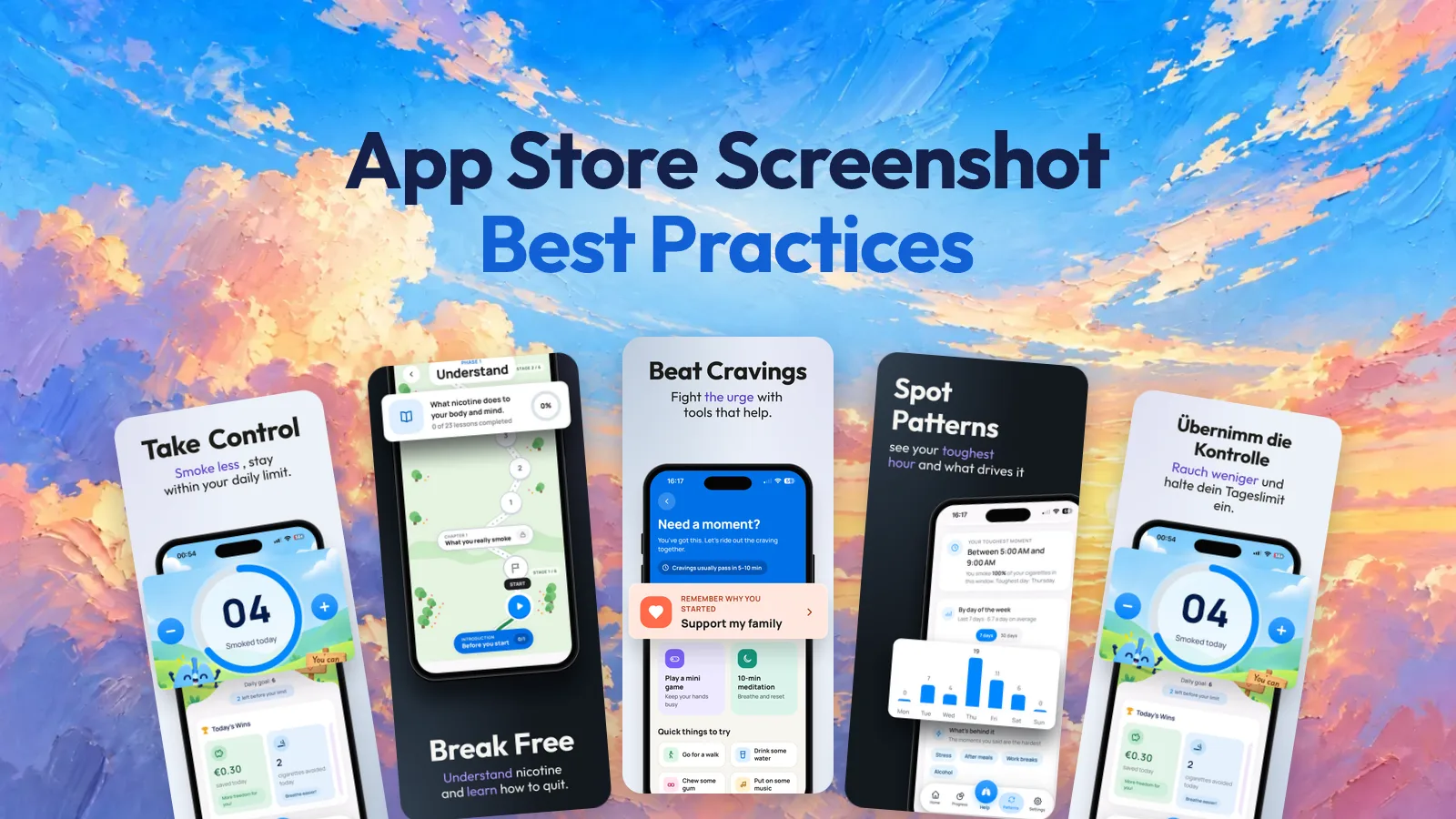
Your first three screenshots do most of the work
Apple lets you upload up to 10 screenshots.
In search results though, people see only the first one to three, when you don’t have an app preview video. That’s from Apple’s product page guide.
So I treat the first three as the whole pitch. The rest is for people who already tapped on the app.
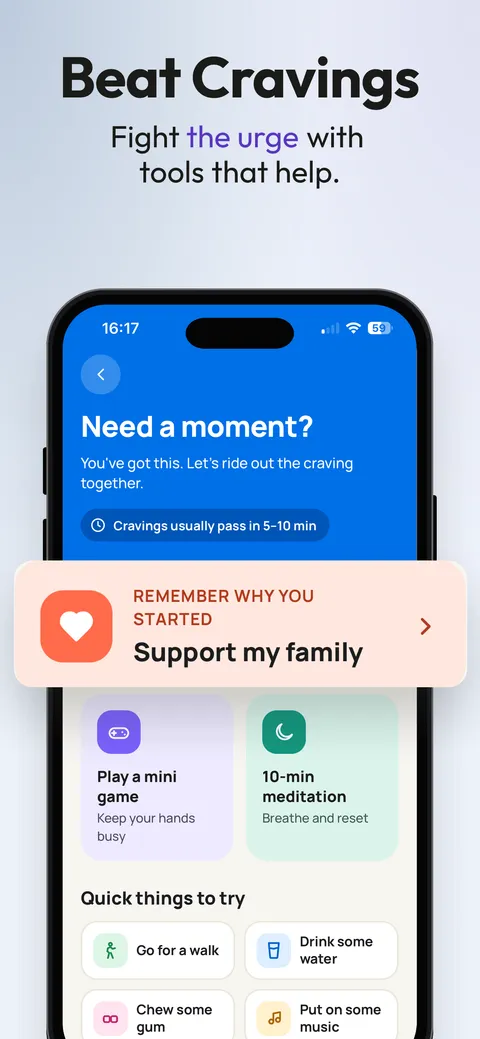
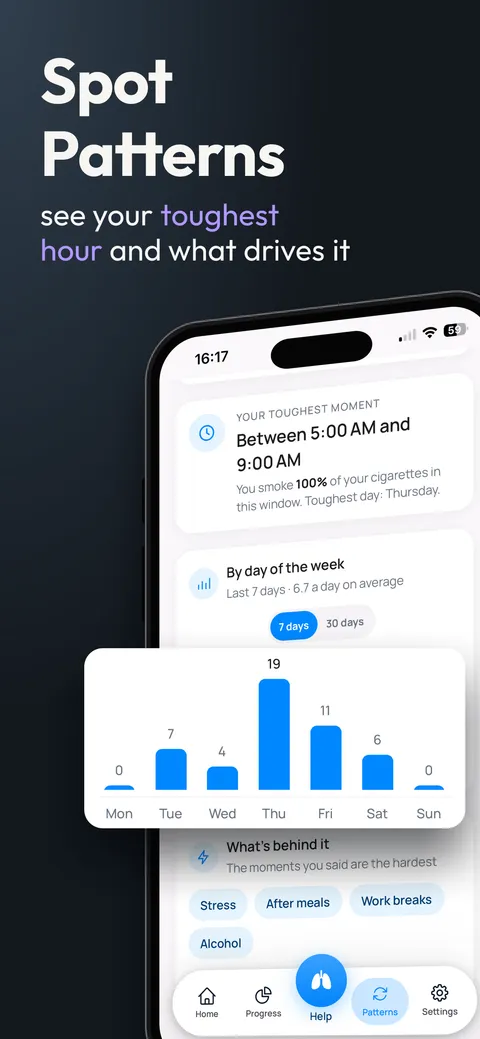
The order follows one idea:
what you get → how it works → one more reason to download
If your first screenshot is a logo or a login screen, you just used one of your three spots on nothing.
One idea per screenshot
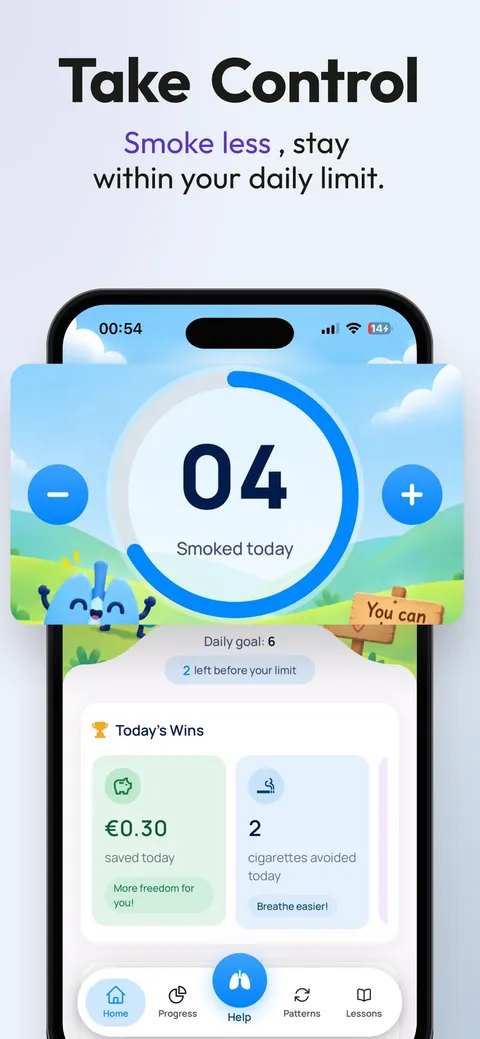
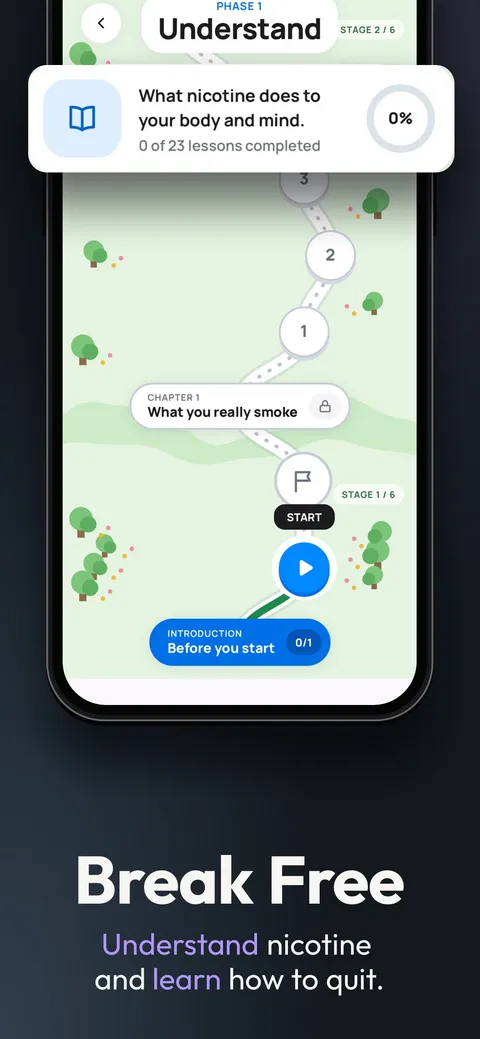
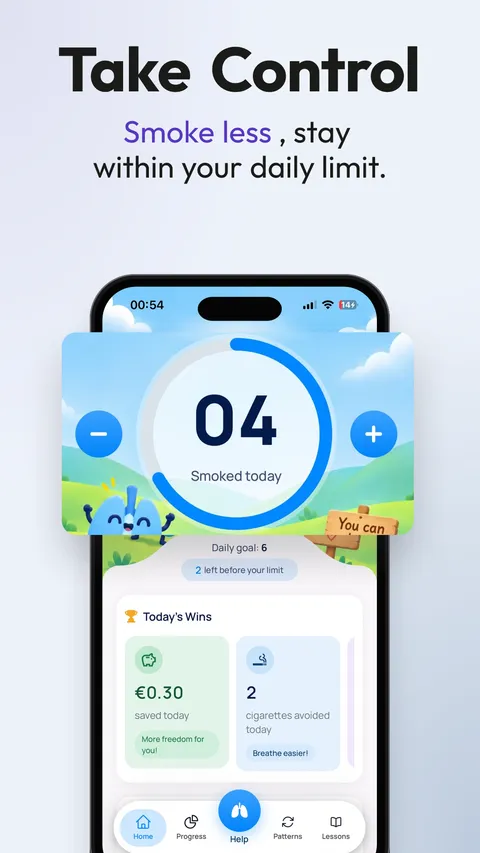
Each Smoke Off screenshot says one thing. A title of two words and one short line under it.
If I need a paragraph to explain a screen, the idea is too big. Or it’s the wrong screen. At least that’s how it works for me.
- The big title is two or three words.
- The line under it says the benefit, with the word people search for.
- The app screen proves what the title says.
Then keep the same look on every screenshot: same font, same colors, same phone. Only the content changes, so the set reads like one story.
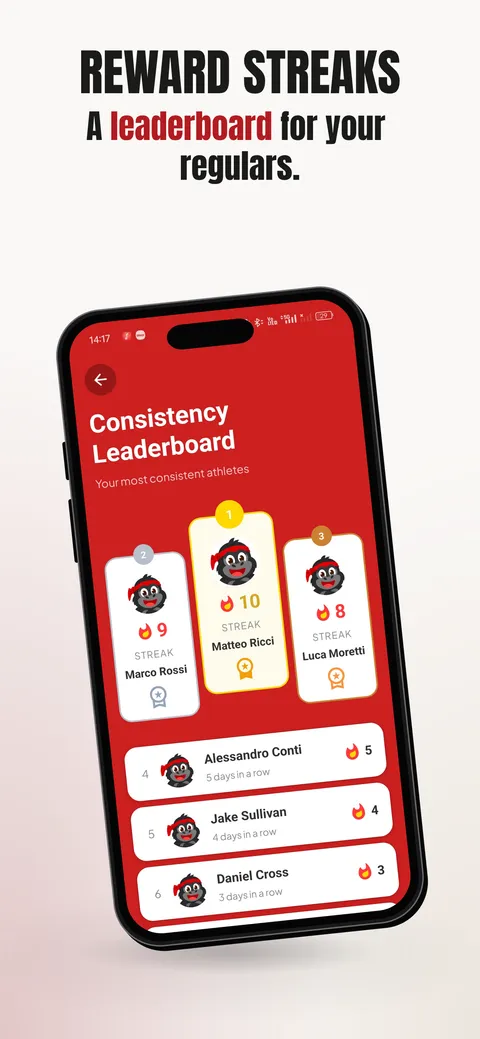
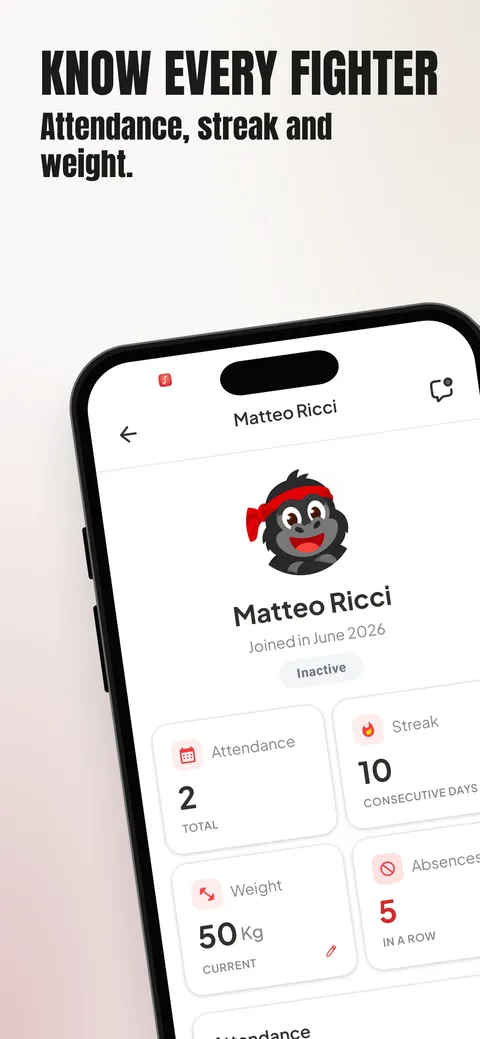
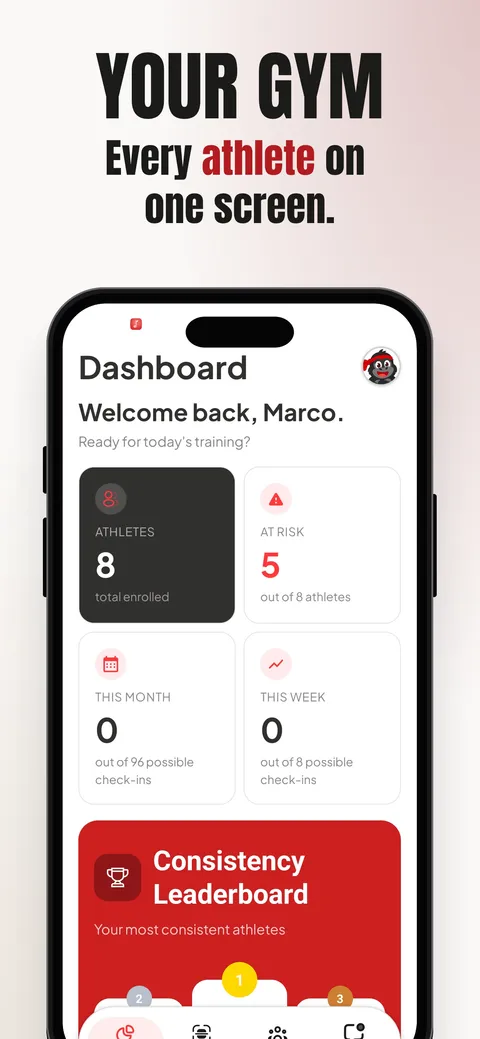
Show the real app
Apple is pretty clear about this. Guideline 2.3.3 says screenshots “should show the app in use, and not merely the title art, login page, or splash screen.”
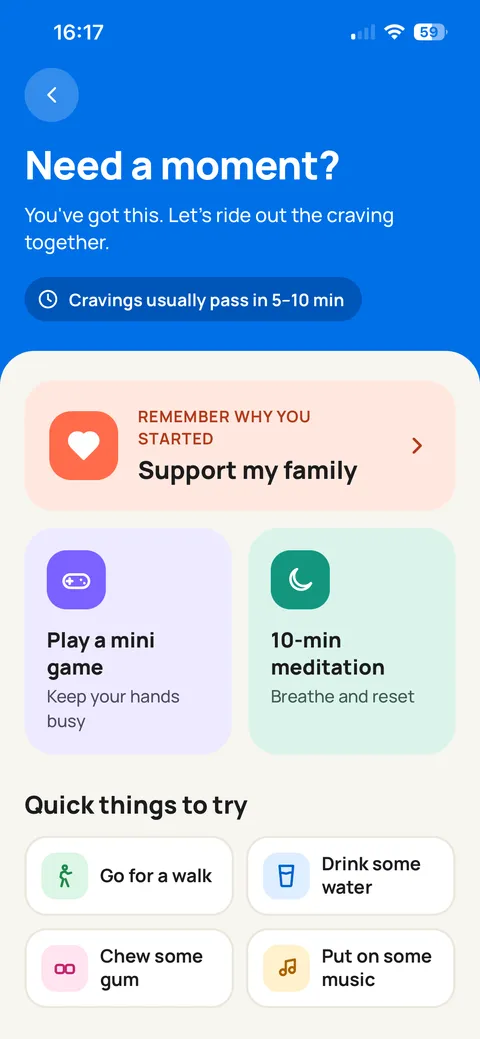
Pick a screen with real-looking content. An empty list or a loading spinner doesn’t show anything worth downloading.
And never show a real person’s account. Make up the names and numbers.
Check them at search size
You design screenshots on a big screen. People see them on a phone, three in a row, while scrolling.
 Smoke Off
If a title isn’t readable at this size, it’s too long or the font is too thin.
The quick check: open the set on your phone and hold it at arm’s length. Can you still read every title?
Apple’s rules and sizes
Before you upload, check the files. These come from Apple’s screenshot specifications:
- Up to 10 screenshots per device size.
- Only .jpeg, .jpg or .png.
- No alpha channel or transparency.
- The exact pixel size of the slot. Close isn’t enough.
One trap: 1284 × 2778 and 1290 × 2796 look almost the same. In App Store Connect they’re two different groups.
The kits I make with Minimalist Screens are 1242 × 2688 for the App Store. Apple takes that size in the “iPhone with Face ID (large display)” group. You need that group only if you don’t upload the bigger Dynamic Island screenshots.
The full tables are in the screenshot size guide. If App Store Connect refuses a file, the size checker tells you what’s wrong with it.
Localize the screenshots too
I made the Smoke Off kit in 8 languages: English, French, Italian, German, Polish, Norwegian, Korean and Chinese.
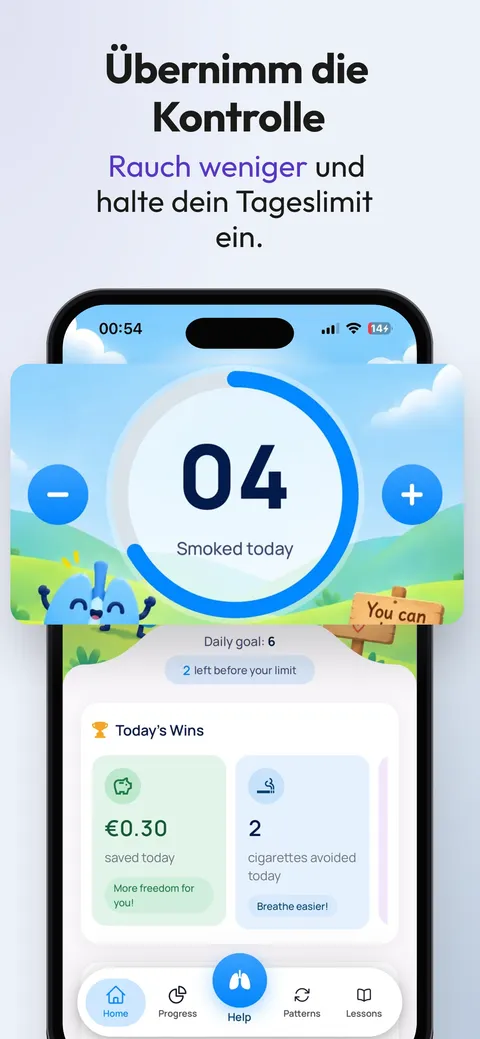
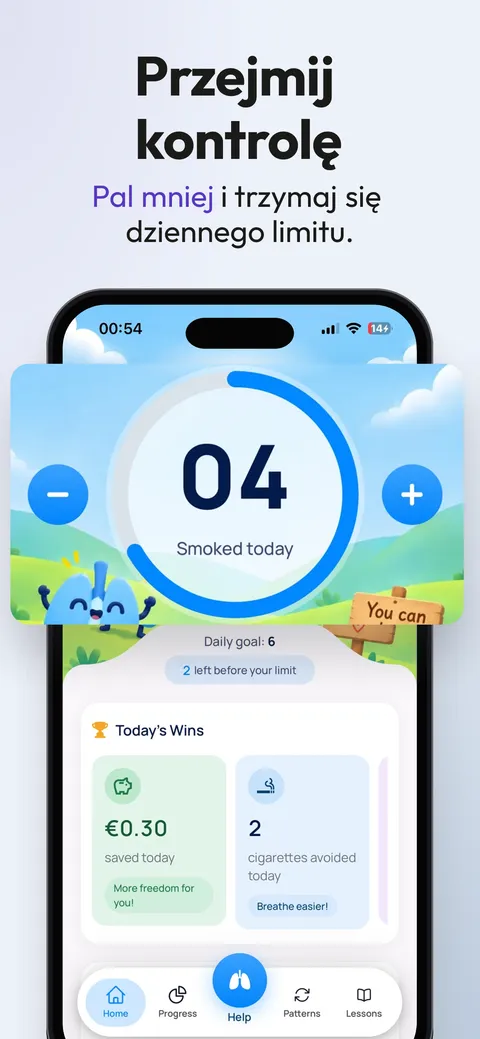
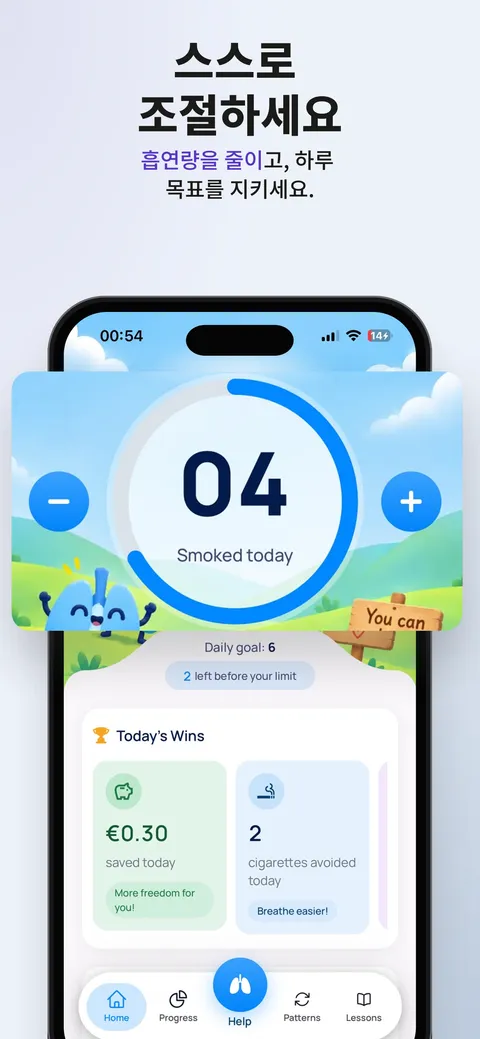
Look at the German one. “Take Control” becomes “Übernimm die Kontrolle”, and the title needs two lines. So check every language, not only English.
In my kit only the text around the phone is translated. The app screens inside are the English ones. If your app is translated, use translated captures too, so the screen matches the caption.
More on this in how to localize screenshot captions, and in Apple’s localization page.
Test one change at a time
Apple has a tool for this: Product Page Optimization.
You can test up to three versions against your current page, for up to 90 days. App Store Connect then shows the conversion rate and a confidence level for each one.
Change one thing per test. The first screenshot, or the order. If you change everything at once, you won’t know what worked.
To be fair, a small app might not get enough traffic for a clear result. That’s normal. The screenshot A/B testing guide goes into more detail.
Before you upload
- The first screenshot says what the app does.
- The first three show three different things.
- Every title is readable on a phone, at search size.
- The screens come from the current version, with made-up data.
- Every language gets its own check, not only English.
- The files are .png or .jpeg, without transparency, at the exact size of the slot.
That’s my list. Is there something you always check that’s missing here? Tell me on X and I’ll add it.