

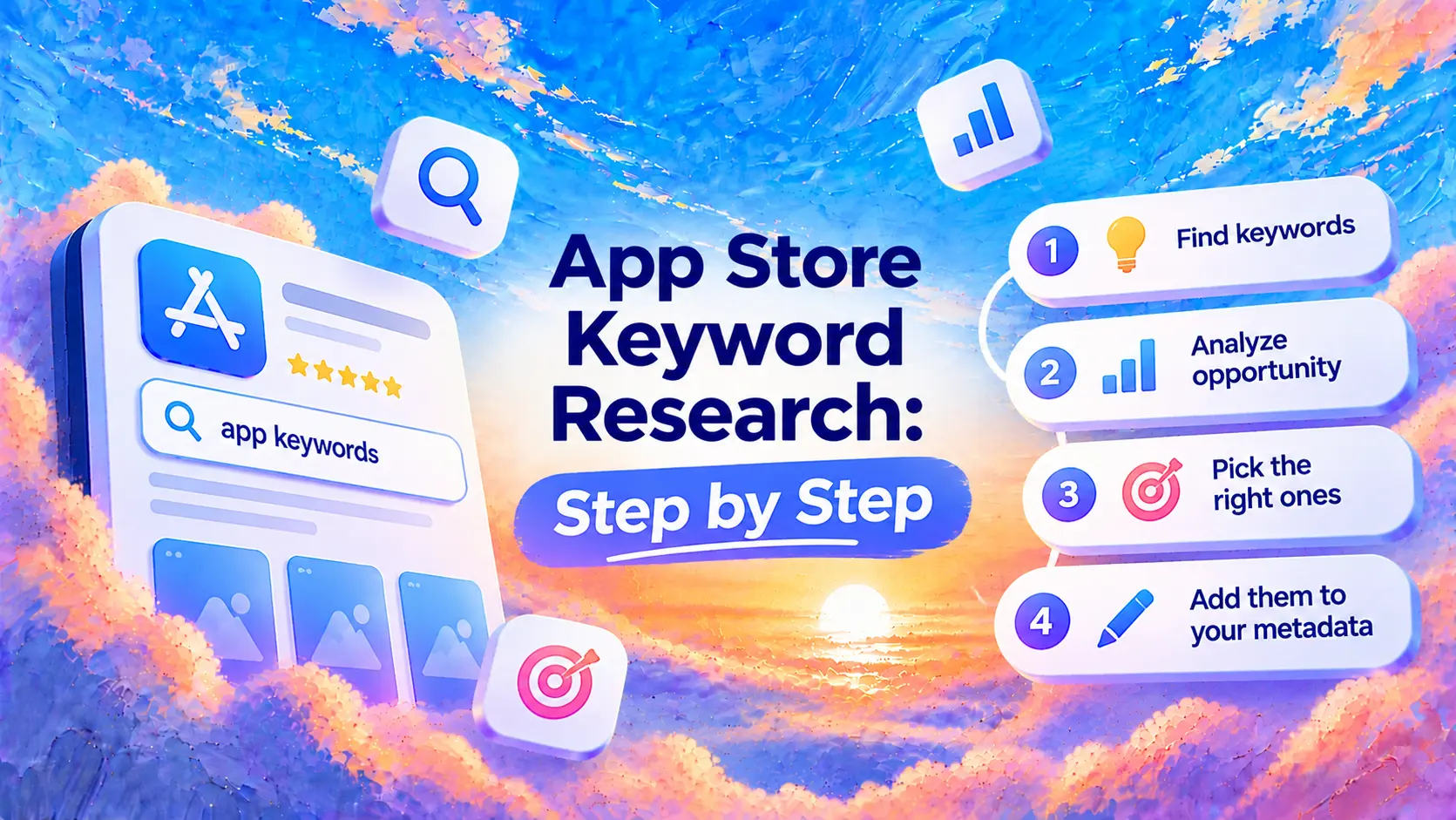
1. Start with seed keywords
Pick one storefront and one listing language. Write down the job people hire your app to do, the features they use to do it, and the words they use to describe the problem. For a habit app, “habit tracker”, “routine reminder” and “streak counter” give you three useful starting points.
2. Find more keyword ideas
Type each seed slowly into App Store search and record the relevant autocomplete suggestions you see in that storefront. Then open competing apps and look for repeated wording in their names, subtitles and reviews. Use their wording to understand how customers describe the task. Leave competitor names out of your own metadata.
Keep the full query in your shortlist alongside the storefront, where you found it and the feature it describes.
To go deeper, see how to find competitor app keywords on iOS.
3. Check demand and competition
Use the App Store keyword research tool to compare popularity and difficulty in the same storefront. Treat popularity as a relative demand signal and difficulty as an estimate. Compare scores from the same source and market.
Search each term and open the first ten organic app results. Record the star rating, rating count, what recent reviews praise or complain about, and which apps use the phrase in their name. If the top results already do the exact job well and have many ratings, expect stronger competition. If they solve a different problem, inspect the search intent before you target the term.
4. Choose and track your keywords
For each ASO keyword, ask whether someone typing it would recognize your app as a good result. Start with the most relevant terms, then use popularity and competition to choose between them.
Work the strongest words into a readable app name and subtitle. Use the keyword field for additional relevant words. In App Store Connect, separate entries with commas, skip words already in the name or subtitle and stay within the 100-character limit of each localization.
Record your positions and App Store Connect search impressions before the release. Check the same queries in the same storefront afterward. Note listing changes and campaigns so you can interpret movement in context.
Worked example with Habit
Habit: Streak Tracker & Goals is a real iOS app with flexible habit schedules, streaks and reminders. Here’s how you could build a US English shortlist from its public listing.
- Gather candidates. Start with “habit tracker”, “routine reminder” and “streak counter”. Check the autocomplete expansions for “habit”, “routine” and “streak”, and scan competing listings for additional feature terms.
- Compare a competing listing. Habit Tracker - Daily Goal uses “habit tracker” verbatim in its name. On the US App Store on November 4, 2026, it had 363 ratings at 4.5 stars, while Habit had 26 at 4.9. A review of the competing app praises its simple checklist. Log that wording, but leave it out for Habit: its listing doesn’t describe a checklist. Then check the rest of the results. Keep “streak counter” on the shortlist because it describes a core feature. Drop “calendar planner” because it points to a different job.
- Assign the words. The current name and subtitle already cover “habit”, “tracker”, “streak”, “routine” and “reminder”. A sample keyword field could add
counter,progress,heatmap,schedule. Each word matches something the listing describes: a streak counter, progress over a 3-month heatmap and flexible schedule types. “Counter” also combines with “streak” from the name to match “streak counter”. - Track the shortlist. Save a baseline for “habit tracker”, “routine reminder” and “streak counter”. After release, check those queries again in the US storefront and compare search impressions over a similar period.
The keyword field and shortlist are editorial examples based on public features. Use live storefront results to validate demand and competition before adopting them.