
What the App Store Review Guidelines cover
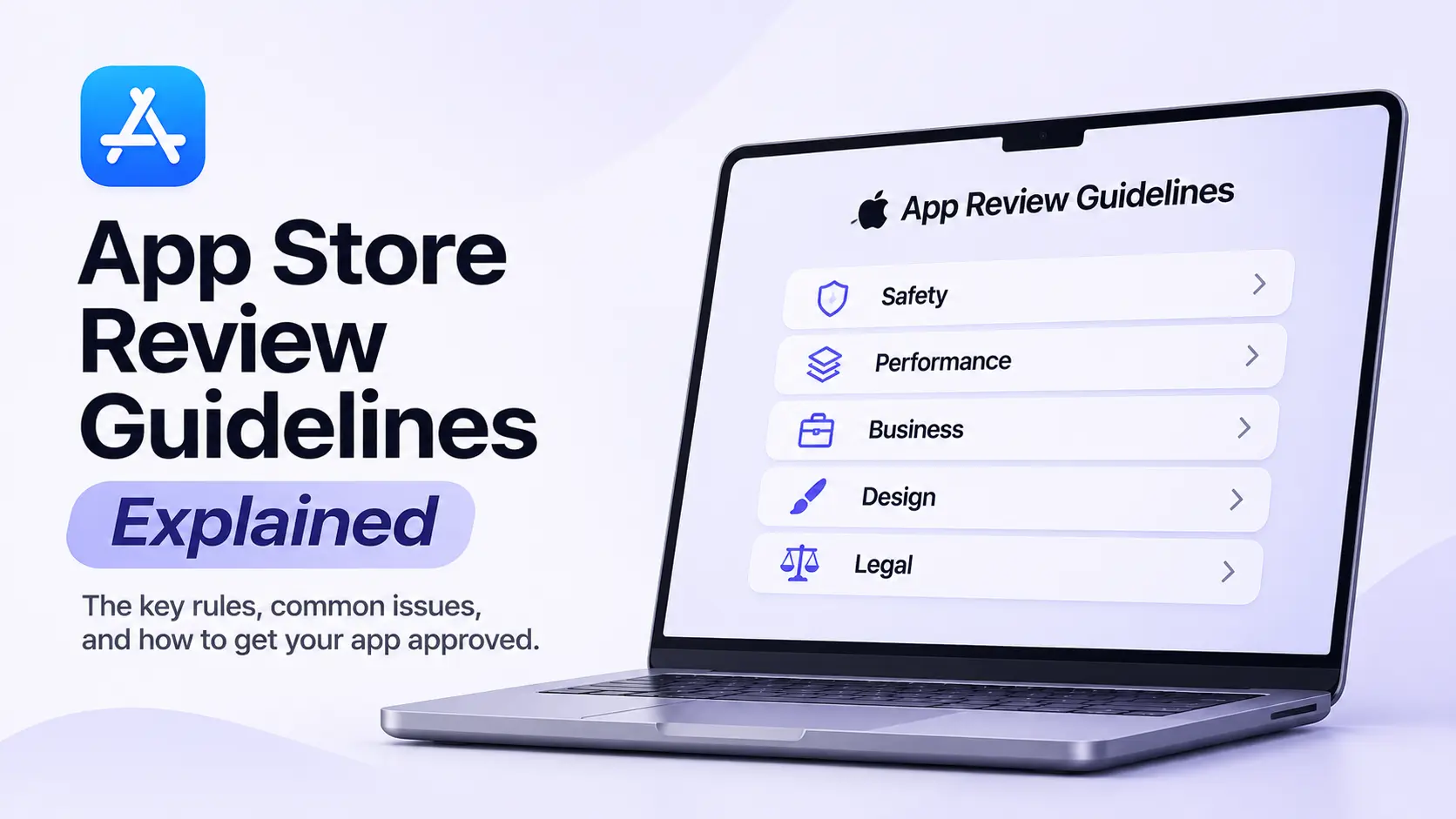
Apple’s own name for the document is the App Review Guidelines. If you searched for apple store guidelines or apple developer guidelines, this is probably the page you wanted. Apple also publishes the Human Interface Guidelines and plenty of technical docs, but those are about building the app. The review guidelines decide what you’re allowed to ship and how you can describe it on the store.
Which sections matter depends on your app. A subscription app should read Business as closely as Performance. If people can post or chat in your app, you need the Safety rules on user-generated content. Third-party SDKs count too: if an analytics or ads SDK breaks a rule, the rejection is still yours.
| Section | What it covers | Where apps get stuck |
|---|---|---|
| Safety | Objectionable content, user-generated content, kids, and data security | An app with posts or chat ships without a way to filter content, report it, or block other users. |
| Performance | Whether the app is finished, works, and matches its listing | The demo login doesn’t work, placeholder text is still there, or the screenshots show features the build doesn’t have. |
| Business | In-app purchases, subscriptions, and links to outside payments | Digital content gets unlocked through a payment path that the storefront or your entitlements don’t allow. |
| Design | Minimum functionality, copycats, spam, and sign-in | The app is a thin wrapper around a website, or one more copy of something the store already has plenty of. |
| Legal | Privacy, intellectual property, and other legal obligations | There’s no in-app account deletion, a permission prompt doesn’t say why, or the app uses assets you don’t have rights to. |
Rules for app names, metadata, and screenshots
App names are capped at 30 characters. Guideline 2.3.7 says the name and keywords have to describe the app. Leave out competitor names, popular search terms that have nothing to do with you, and claims you can’t back up. Prices don’t belong in the name, subtitle, screenshots, or previews either, and neither does text that has nothing to do with that field.
Screenshots have to show the app in use. Guideline 2.3.3 lets you add captions and graphics on top, but a set made of title cards, a login screen, and a splash screen won’t pass. Pick screens where someone is doing something real in the version you’re submitting. If a screenshot shows a feature that costs extra, say so (guideline 2.3.2).
Use made-up names and account data in your screenshots, and only include images you have the rights to. Your store metadata has to be fine for a 4+ audience, even if the app itself has a higher age rating. Sizes and file formats are a separate question, covered in our screenshot requirements guide.
Say you’re making a budgeting app. A good screenshot might show a fake monthly spending summary, with a caption that says what the screen is for. Before you upload it, open the build and check that the screen and its buttons still look like that. The App Store screenshot generator lays out screens and captions for you, but you still need to check every image against the app.
Guideline 5.1.1: data collection and storage
Guideline 5.1.1 is about how your app collects and stores data. If you’re rejected under it, look at which subsection the reviewer cited. A missing privacy policy, a permission you don’t need, and no way to delete an account each need a different fix.
Every app needs a privacy policy link, both in App Store Connect and somewhere inside the app. The policy should say what you collect, why, who you share it with, and how long you keep it. When you ask for a permission, the prompt should give the real reason, and you should only ask for data the feature needs.
If people can create an account in your app, they also need to be able to delete it from inside the app. If your app has no features that really depend on an account, let people use it without signing in. Try saying no to every permission prompt and see what happens: someone who declines location access should still be able to type in an address.
While you’re there, read guideline 5.1.2 too. If you send personal data to a third-party AI service, you have to tell users clearly and get their permission first. Using someone else’s AI SDK doesn’t make it their problem.
What changed in the latest App Review Guidelines?
Checked on November 20, 2026. The most recent update in Apple’s developer news is from October 16, 2026, after the November 2025 revision. These are the changes most likely to affect a small app. For everything else, read the announcement and the guidelines themselves.
- User-generated content (1.2): Apple spelled out which apps and content this covers, AI-generated content included, and what happens when an app has weak safeguards or ignores violations.
- Creative assets (2.3.14): a new rule for images shown in places like product page headers and search results. They have to be relevant and fine for all ages, with no misleading references, unverifiable claims, or specific or discounted prices. Screenshots of the app in use still follow their own rules.
- Hidden features (2.5.19): the ban on hidden, dormant, or undocumented features isn’t new, but Apple moved it and made the wording clearer. The reviewer should be able to reach every feature in the build you submit.
- External purchase links (3.1.1(a)): the music-streaming entitlement wording now sits inside the external purchase link rule, and Apple clarified where those links can point. If you use them, check which storefronts and entitlements apply to your app.
How to prepare for your first App Store review
Go through Apple’s Before You Submit checklist with the exact build and listing you’re about to send. It won’t guarantee approval, since that’s Apple’s call, but it catches the problems that are easy to avoid.
- Test the build: launch it and go through onboarding, the main tasks, purchases, and error states on the devices you support. Remove placeholder text and dead links.
- Give the reviewer a way in: if features sit behind a login, add a demo account that works, plus any setup steps or sample content they’ll need. Keep your backend running while the app is in review.
- Explain anything that isn’t obvious: use App Review Notes to describe new features and purchase flows, with steps the reviewer can follow.
- Compare the listing with the app: the name, description, screenshots, age rating, and privacy details should all match the build. Replace images of features you removed or haven’t finished.
- Be clear about subscriptions: tell people what they get for the price before they subscribe, and read the purchase rules in section 3.
- Walk through the privacy flows: tap your privacy policy link, decline every permission, and delete a test account if your app has accounts.
- Keep your contact details up to date: App Review sometimes needs to ask you something, and a slow answer means a slow review.
What to do if Apple rejects the submission
Read the guideline Apple cites together with the reviewer’s note. Reproduce the problem, fix it, and tell the reviewer how to check the fix. For a screenshot mismatch, compare the listing with the build. A privacy rejection may need changes in the app itself, not only in your metadata.
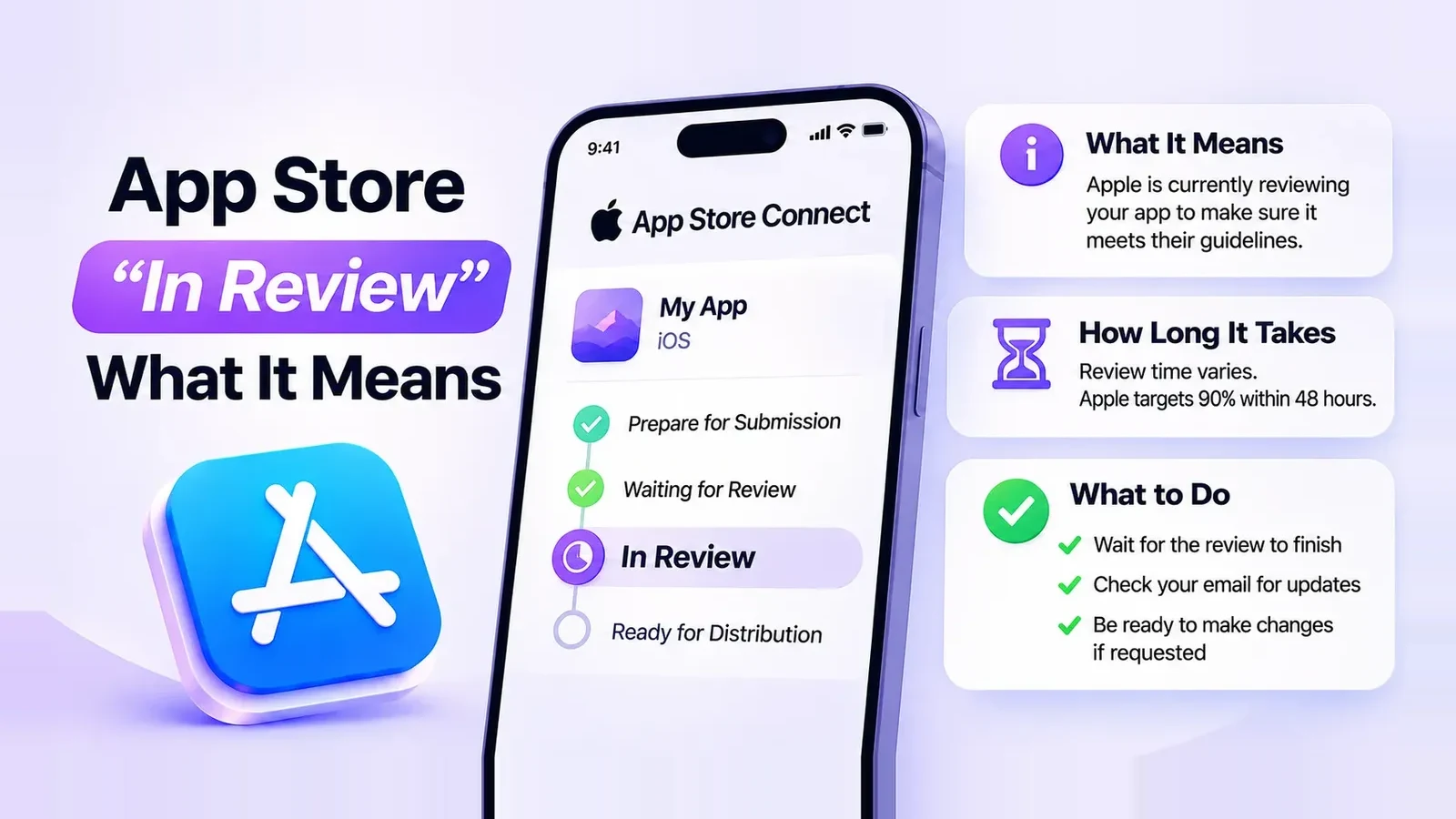
If the problem is your screenshots, see our guide to fixing rejected App Store screenshots. If you’re still waiting for a decision, here’s how long App Store review takes. And reread the guidelines before your next submission, because Apple updates them regularly.