
Back to blog

App Rejected? How to Use the Resolution Center

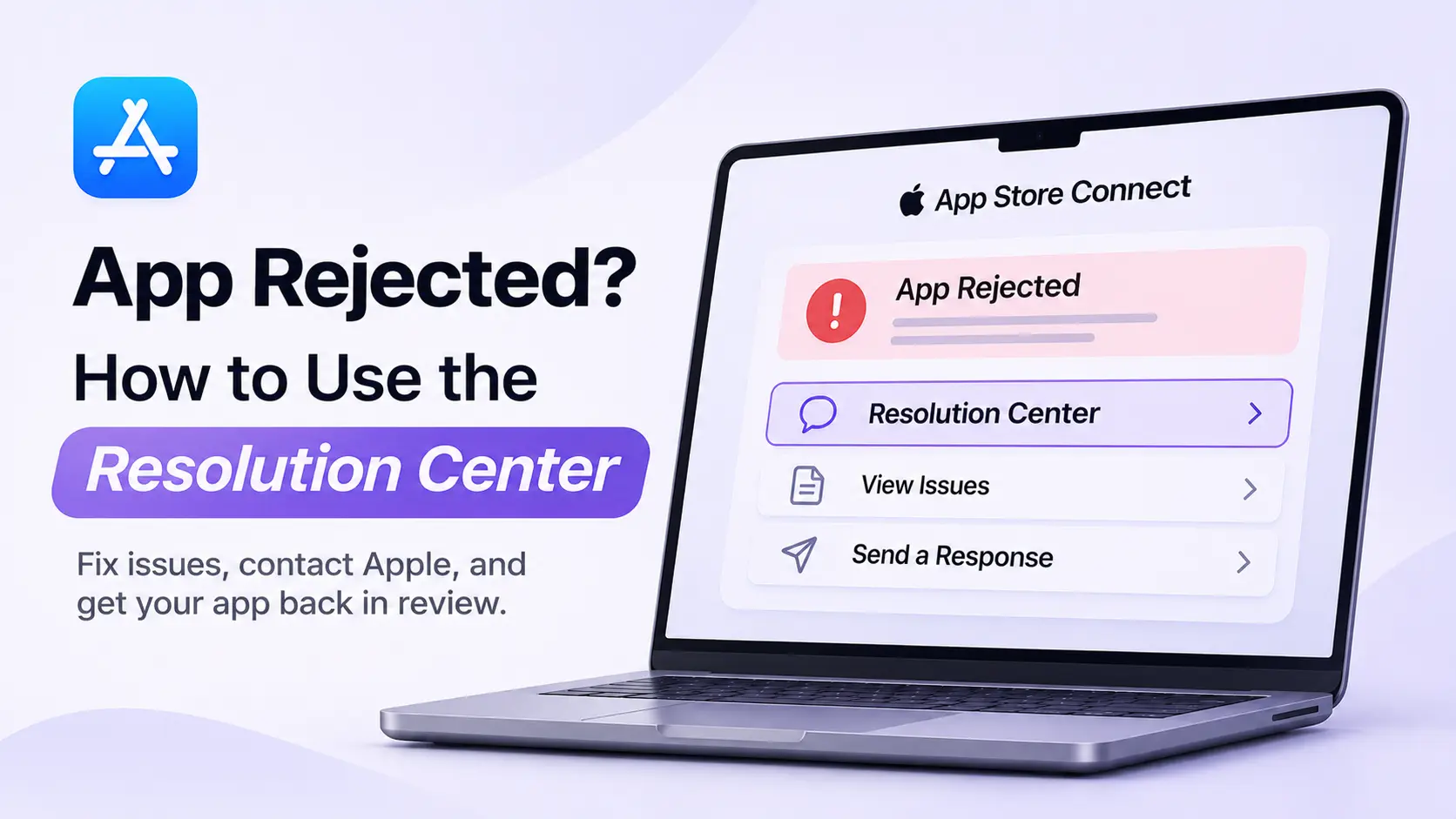
To find Apple’s Resolution Center, open App Store Connect, go to Apps, and click View App Review Issues & Messages. Your submission is under In Progress: click Resolve next to it and read why it was rejected. From there you have three options. You can explain things to the reviewer, fix the item and resubmit, or file a formal appeal.

App Rejected? How to Use the Resolution Center: a laptop showing App Store Connect with a rejection, Resolution Center, View Issues, and Send a Response

Where is the Resolution Center in App Store Connect?

Resolution Center is the old name, and most developers still use it. In Apple’s current instructions the same place is called View App Review Issues & Messages, and the page itself is App Review. If an older tutorial tells you to open the Resolution Center, look for those labels instead.

This is where Apple tells you why the app was rejected and where you talk to the reviewer. The message names the problem and the guideline behind it. Before you change anything, open the submission and check which items were accepted and which weren’t.

Navigation checked on November 20, 2026. In Apps, click the issues and messages link, find your submission under In Progress, and click Resolve. You can also open your app first and use the unresolved issues link at the top of its page, as Apple’s messaging guide describes.

Should you reply, resubmit, or appeal?

Ask yourself what would actually settle the reviewer’s concern. If the build you sent already does what Apple wants, the reviewer is missing context, so send it. If the app or the listing really needs a change, make it and resubmit. If you’ve explained yourself and you still disagree about whether the app follows the rules, that’s when a formal appeal makes sense.

A reply doesn’t change your code or your metadata. And uploading a new build without fixing the problem Apple named won’t help the reviewer see that anything changed. Before you decide, read the cited rule in our App Store Review Guidelines guide and in Apple’s own text.

What to do, depending on what Apple flagged
What happenedWhat to doWhat to include
The reviewer couldn’t find a feature that’s already thereReply with the exact steps to reach itThe screen name, demo access, and a screenshot or two
Your screenshots or other metadata don’t match the appFix the listing and resubmit that itemThe new assets and a short note on what you changed
The build crashes or is missing something Apple requiresFix it, test it, and submit a new buildSteps to reproduce the issue and the new build number
You’ve explained, and you still think the decision is wrongFile a formal appealEach cited guideline and why your app meets it

How to reply to App Review

Open the submission and click Reply to App Review. Write your answer, add screenshots or documents with Attach File if they help, and click Reply. According to Apple’s guide to replying, you need the Account Holder, Admin, or App Manager role to do this.

Answer the exact guideline, feature, or test step the rejection mentions. Tell the reviewer what to do and what they should see when they do it. If something in the message isn’t clear, ask one specific question about it. Don’t paste login details into a public document: put them in the submission’s App Review Information.

Here’s an example for a made-up app whose export feature the reviewer missed: “About the export feature mentioned under guideline 2.1: in version 1.4, build 82, sign in with the demo account in App Review Information. Open Reports, pick the sample report, then tap Export in the menu at the top right. The attached screenshot shows where it is. Let us know if you can’t reach it with these steps.” Only send something like this if it’s true for the build you submitted.

If you still need help after replying, Apple lets you request a phone call from the message window. Keep your contact details up to date and add your time zone. Formal appeals and expedited review requests go through separate forms, listed on Apple’s Contact App Review page.

How to fix and resubmit a rejected app

If only the metadata was rejected, Apple says you can fix it and keep the same build. If the fix touches the code, you need a new build. For a screenshot problem, go through each image and caption next to the submitted app before you replace anything. The App Store screenshot generator can help you make a new set, but check that every feature and claim you show is really in the app.

Then follow Apple’s steps for a submission with unresolved issues:

  • 1. Open the submission: Apps → View App Review Issues & Messages → In Progress → Resolve.
  • 2. Edit the rejected item: click Edit next to it and make your changes. If the fix changed the app, select the new build.
  • 3. Put it back up for review: when you’re done, click Add for Review.
  • 4. Deal with every rejected item: edit each one, or remove it if you don’t want it in this submission anymore. A removed item can’t be added back to the same submission.
  • 5. Resubmit: click Resubmit to App Review on the submission details page. Add for Review alone doesn’t send anything to Apple.

Why the submission still says Unresolved Issues

One submission can hold several items, and Apple only approves it when every item in it is approved. So your app version can be accepted and still be held up by something else in the same submission, like a rejected in-app event.

Open Resolve and look at the whole list of items. While a submission has Unresolved Issues, you can’t add new items to it, and you can only edit each item once before you resubmit. If you remove every rejected item, the submission moves to Completed and the accepted items are ready to release. Check what you’re removing before you go that way. Apple explains the details in Manage a submission with unresolved issues.

How to appeal an App Store rejection

Start with a reply in App Store Connect. If that doesn’t settle it and you’re confident the app follows the rules, follow Apple’s instructions for appealing to the App Review Board and use the form linked there. A normal Reply to App Review message doesn’t count as an appeal.

In the appeal, explain how the app meets each guideline Apple cited and attach whatever backs that up. If several guidelines were cited, cover them all in one appeal. If Apple asks you for more information, answer that first. Apple also says not to appeal if you’ve already fixed the issues and resubmitted. And a good appeal can still be turned down.

Troubleshooting access and contacting support

If you can’t find the Resolution Center, use the App Review navigation described above. Make sure you’re signed in to the team that owns the app and that your account has access to it. To reply, you need one of the roles Apple lists: Account Holder, Admin, or App Manager. Getting the rejection email doesn’t mean you have that role, so ask your Account Holder or Admin if you’re not sure.

For problems with App Store Connect itself, go to Apple Developer Contact Us and pick the matching topic. For questions about a rejection that’s still open, reply from inside the submission, so the person at Apple can see the whole thread. Apple’s App Store support page links to the support options for App Store Connect and App Review.

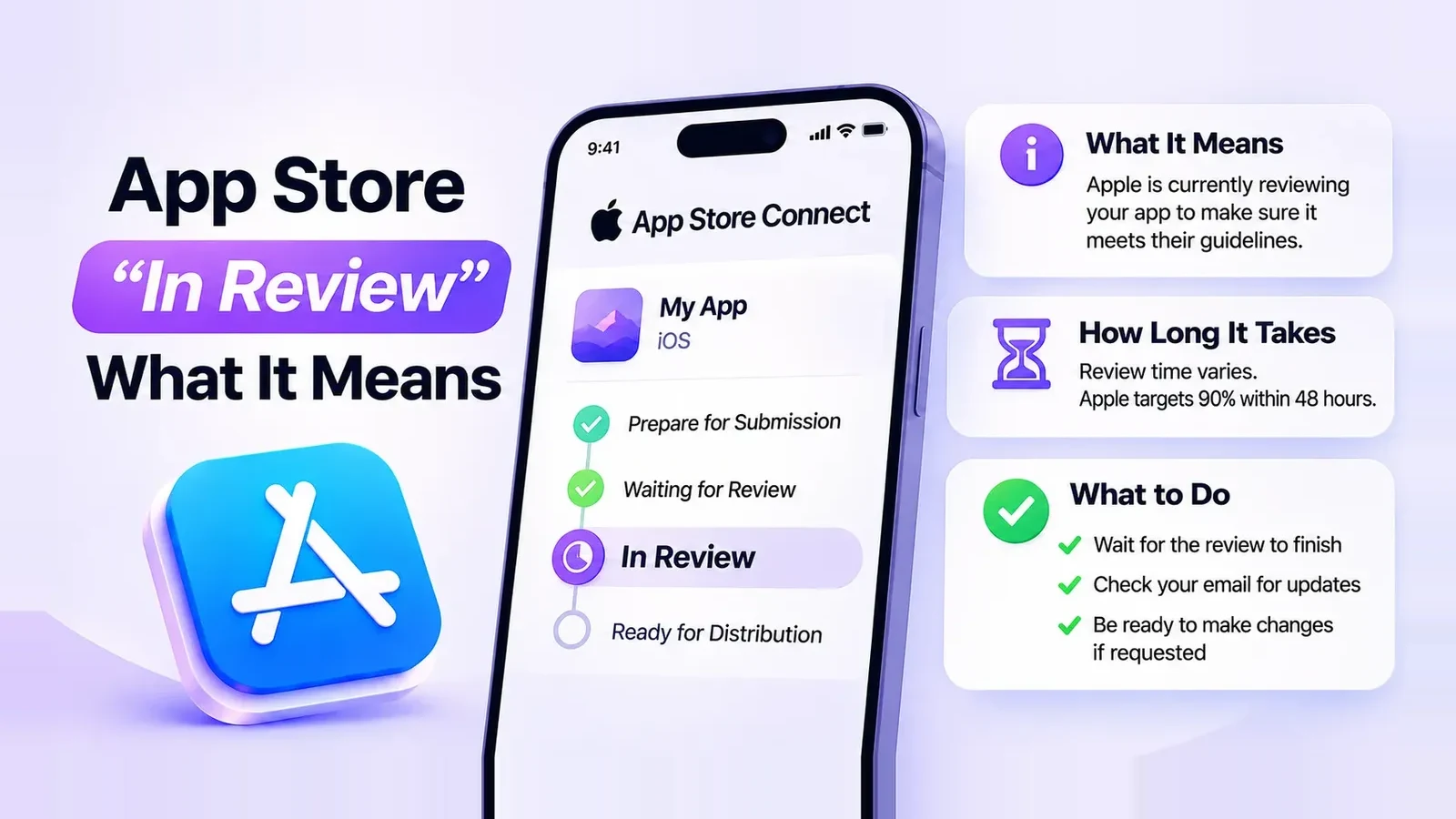
Once you’ve replied or resubmitted, keep an eye on the submission for Apple’s next message. For what comes next, see what In Review means. If the rejection was about your store listing, our guide to fixing rejected screenshots goes through it step by step.
You've built the app.Now let people find it.

No marketing skills, no posting. A few minutes a day on your store page, and you see what moves. Start free, no card needed.

Start free

Frequently asked questions

What is the Resolution Center in App Store Connect?

It’s the old name for the place where you read why your app was rejected and talk to App Review. Apple now calls it View App Review Issues & Messages, and the page is App Review. Click Resolve on the submission to see the issue and reply.

How do I fix and resubmit a rejected app?

Go to Apps → View App Review Issues & Messages → Resolve. Click Edit next to the rejected item, fix it, and click Add for Review. When every rejected item is dealt with, click Resubmit to App Review. If only the metadata changed you can keep the same build; a code fix needs a new one.

Should I reply in the Resolution Center or resubmit?

Reply when Apple needs an explanation, evidence, or steps to find something in the build you already sent. Fix and resubmit when the app or the metadata has to change. If you’ve explained and still think the decision is wrong, use Apple’s separate appeal process.

How do I appeal an App Store rejection?

Reply in App Store Connect first. If you still disagree, use the form linked in Apple’s App Review Board guide and explain how the app meets each cited guideline. A reply to the reviewer on its own isn’t an appeal.

Why can't I access the Resolution Center?

It probably has a new name: look for View App Review Issues & Messages. Also check that you’re in the right team, that you have access to the app, and that your role is Account Holder, Admin, or App Manager, the roles Apple allows to reply. If not, ask your Account Holder or Admin.

How do I contact App Store Connect support?

Go to Apple Developer Contact Us and pick the topic that matches your problem. For questions about a rejection that’s still open, reply from inside that submission instead. Formal appeals go through the App Review Board.

Sources

  1. Apple Developer — Manage a submission with unresolved issuesdeveloper.apple.com
  2. Apple Developer — Reply to App Review messagesdeveloper.apple.com
  3. Apple Developer — Contact App Review for help with a submissiondeveloper.apple.com
  4. Apple Developer — Appeal to the App Review Boarddeveloper.apple.com
  5. Apple Developer — App Store support and contact optionsdeveloper.apple.com